
Podcast Composer allows you to edit how episodes appear in your new feed without needing access to the original source files or hosting provider.
Why Customize?
- Better SEO: Improve episode titles and descriptions for search.
- Branding: Add your own prefix to titles (e.g., “[Interview] Title”).
- Visuals: Use unique artwork for special episodes.
- Technical Fixes: Add missing transcripts or chapters that weren’t in the original feed.
How to Apply Overrides
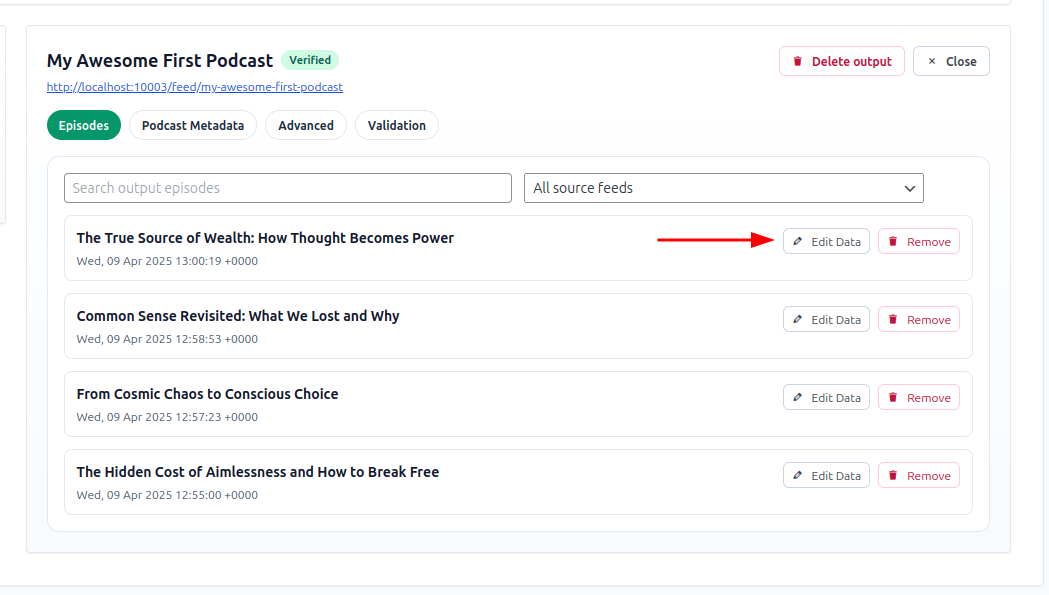
- Go to the Outputs view and select your feed.
- Look at the list of mapped episodes.
- Click the Edit or Override icon next to an episode title.
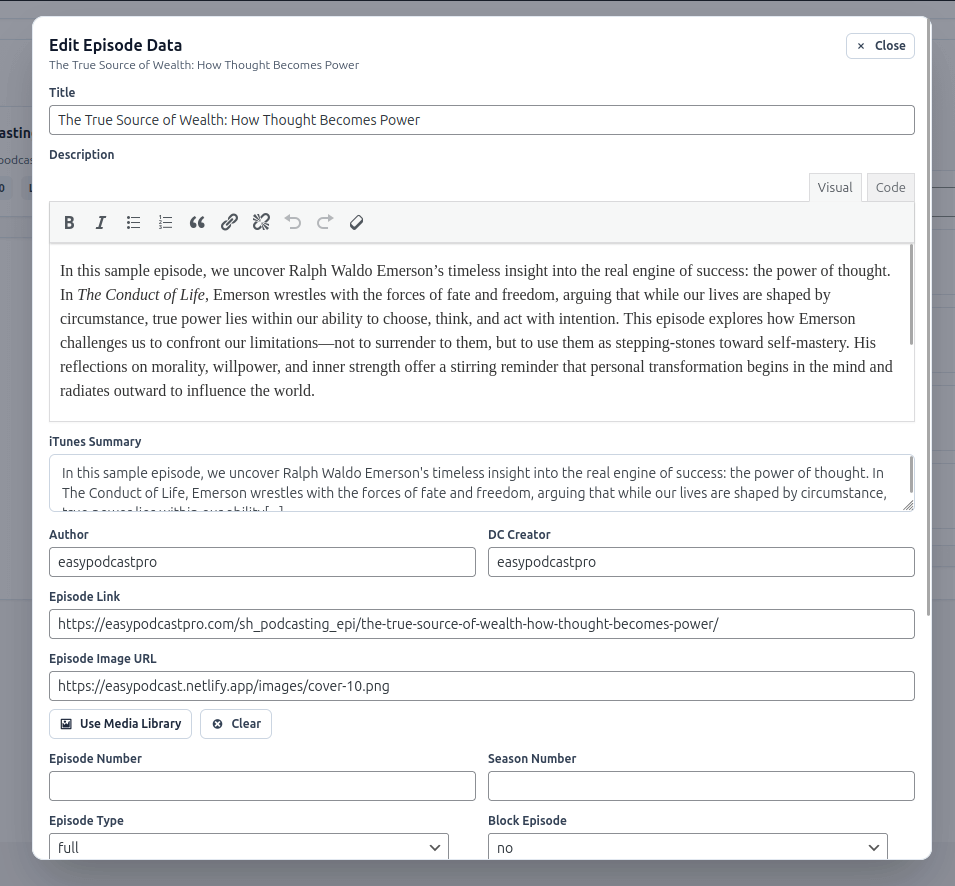
- A popup/form will appear showing the “Original” data and the “Override” fields.
Available Customizations
- Title: Change the public-facing name of the episode.
- Description: Rewrite the show notes.
- Summary: Create a shorter version specifically for podcast apps.
- Artwork: Upload a new square image (3000x3000px max) for this specific episode.
- Author: Change the creator name shown in the app.
- Explicit Status: Mark an episode as “Clean” or “Explicit” regardless of its original setting.
- Advanced Tags: Add or edit the Transcript URL and Chapter Files.
Saving Changes
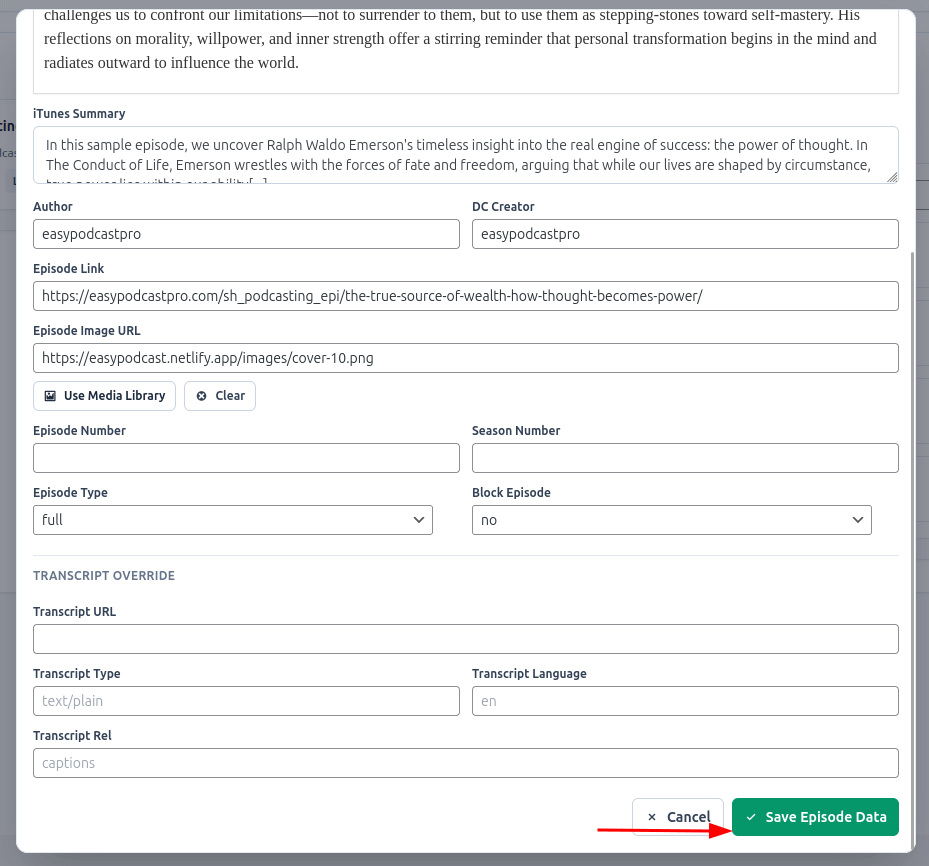
Once you save your overrides, the plugin will automatically:
- Clear the cached version of your XML feed.
- Regenerate the feed with your custom data.
- The changes will be reflected in podcast apps the next time they refresh your feed (usually within 1-2 hours depending on the directory).
[!NOTE] Safety First: Your overrides only apply to the Output Feed you are currently editing. The original source remains untouched, and other output feeds using the same episode will still see the original data unless you customize them separately.