
Welcome to Podcast Composer! This guide will walk you through creating your first custom feed in minutes.
1. Create a Project
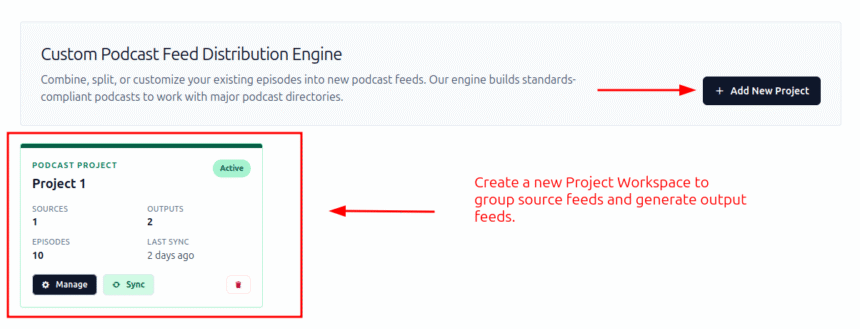
Everything in the plugin happens inside a Project. A project is a workspace where you manage a specific group of sources and outputs.
- Click on Podcast Composer in your sidebar.
- Click Create New Project.
- Give your project a name (e.g., “My Network”) and click Save.
2. Add a Source Feed
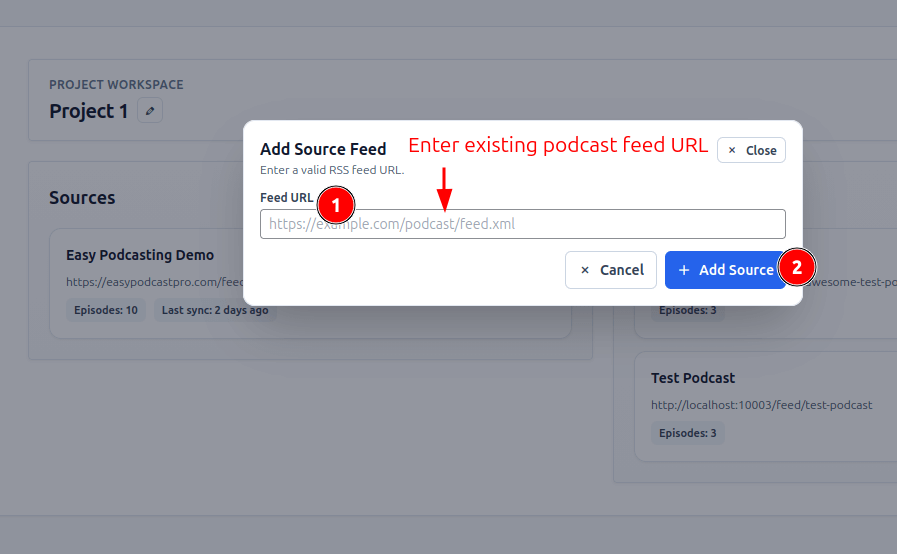
A “Source” is any existing podcast RSS feed you want to pull episodes from.
- Inside your Project, go to the Sources tab.
- Click Add Source.
- Paste the URL of the podcast RSS feed you want to use.
- Click Sync. The plugin will now fetch all episodes from that feed and index them in your site.
3. Create an Output Feed
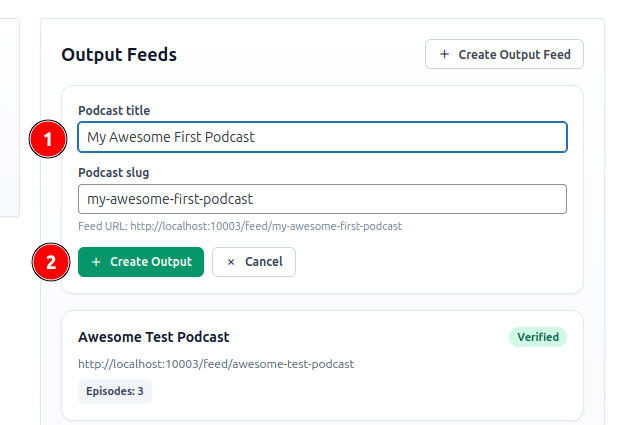
An “Output” is the new feed you are creating for distribution.
- Go to the Outputs tab in your project.
- Click Create Output Feed.
- Set a Title for your new podcast. This will be part of your new feed’s URL, e.g.,
yoursite.com/feed/my-new-show.
4. Add Podcast Meta to the output feed
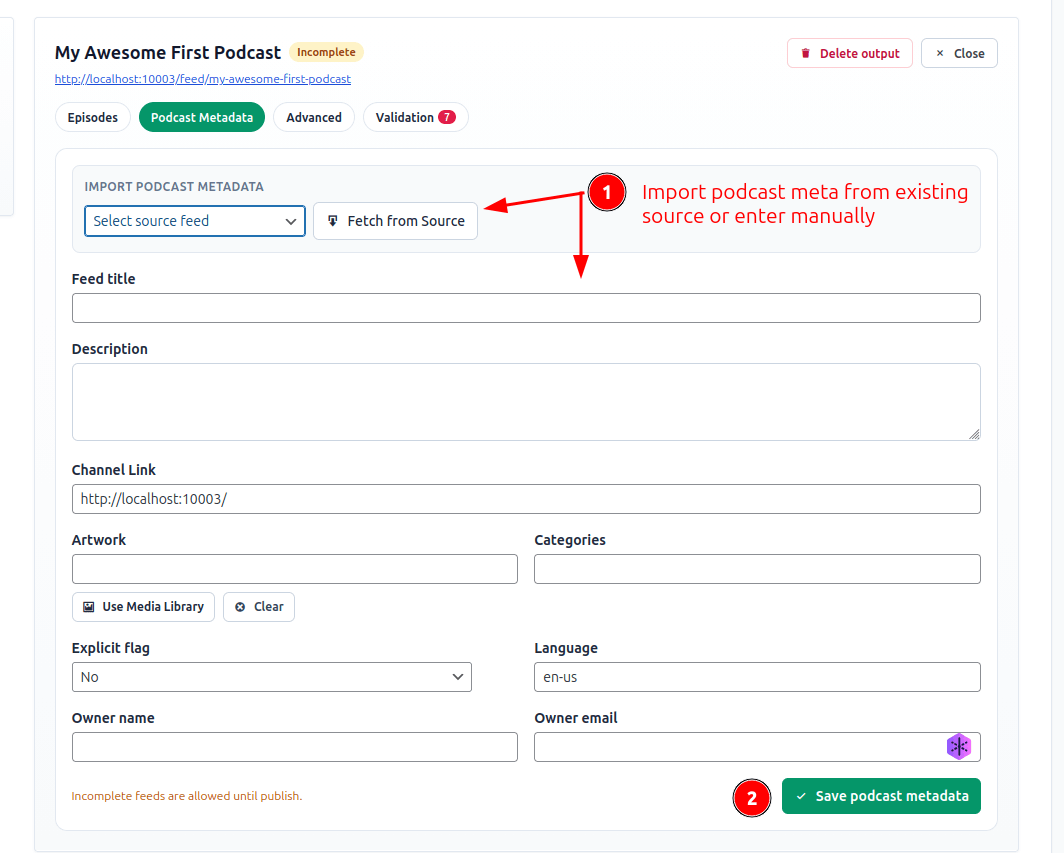
- Go to the Podcast Metadata tab of your newly create output podcast.
- Add podcast metadata details like Title, Description, and Artwork etc.
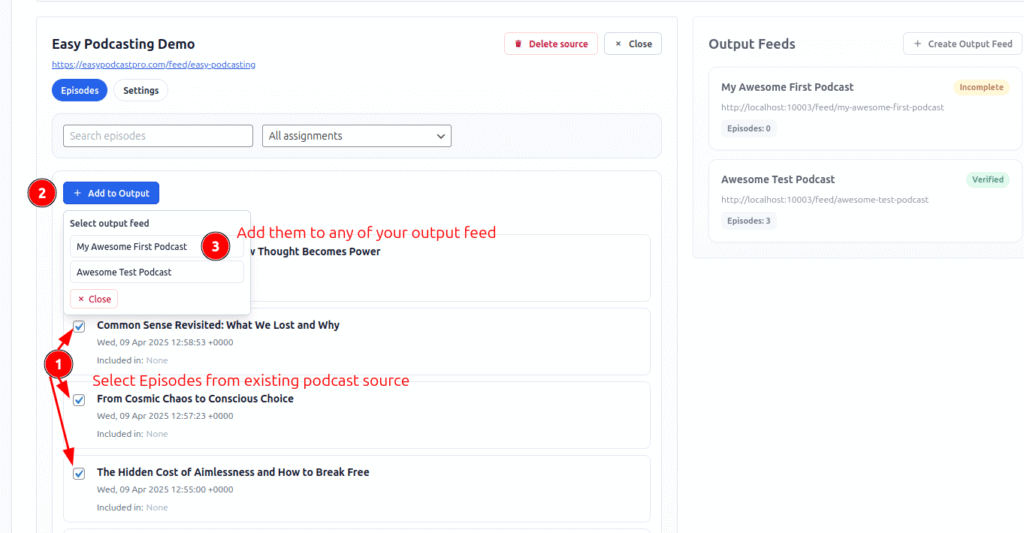
5. Map Your Episodes
Now for the fun part: choosing which episodes go into your new feed.
- Go to the Episodes or Library view in your project.
- You will see a list of all episodes fetched from your sources.
- Use the Add to Output button (or drag and drop if available) to move episodes into your desired Output feed.
- Rearrange the order if necessary.
6. Share Your New Feed
- Go back to the Outputs tab.
- Copy the Feed URL.
- You can now submit this URL to Apple Podcasts, Spotify, or any other directory!